> For the complete documentation index, see [llms.txt](https://docs.navless.ai/llms.txt). Markdown versions of documentation pages are available by appending `.md` to page URLs; this page is available as [Markdown](https://docs.navless.ai/sharing/tour-link-sharing.md).
# Tour Link Sharing
Sharing your Tours via Links
In addition to Embedding your tours on web pages, they can also be shared utilizing links.
## 1. Sharing Tours using Product Tour Pages:
## Why use Product Tour Pages?
Save time by creating Product Tour Pages directly from the Tourial builder. No more need to spin up a new page to share your product tours.
Product Tour Pages are:
* Quicker to Launch: go from 'finished tour' to 'live in the wild' in seconds
* A Better Buyer Experience: consistent look and feel with built-in whitespace that automatically optimizes for ideal viewing on any device.
* More Likely to Convert: Built-in, persistent CTA with prime (and familiar) location.
## Creating a Product Tour Page
1. Open the Tour you wish to create a tour page for.
2. Click on the Publish button in the upper-right corner and Tourial will generate a shareable URL and an embed code
1. Click on the Share button to open up the share menu. From here you can copy your tour's shareable URL and the embed code.
2. You can also update the URL here - Tourial will generate a random string of characters for every tour, but we recommend updating this URL before you share with your buyers
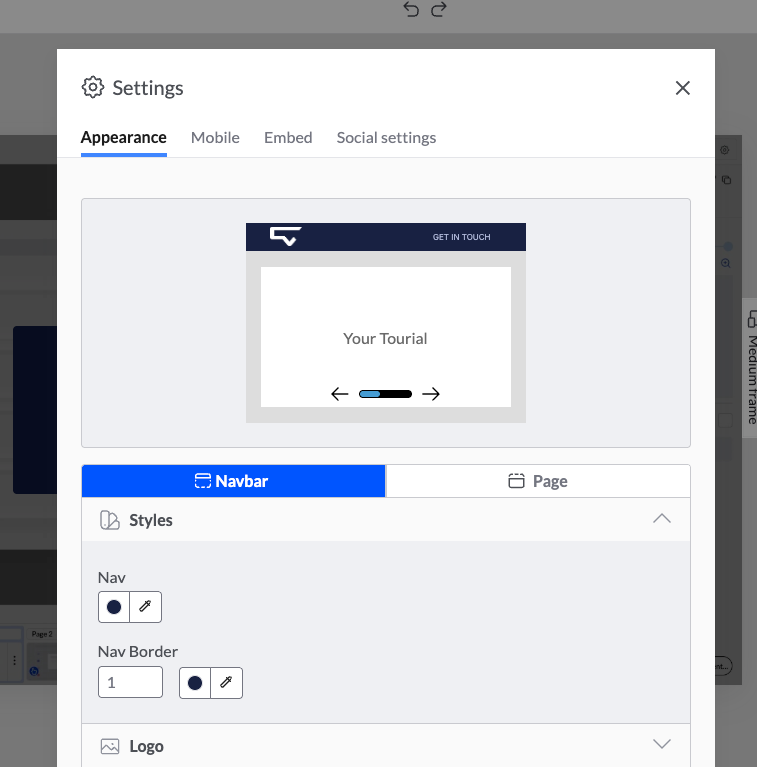
3. Hit the Settings button in the top right and you'll be able to customize the look and feel of your new, shareable produc tour page. You'll want to make sure that your shareable tours are on-brand and have trackable CTAs so your viewers can engage with your calls to action at any point in the tour experience.
* Under CTA, you can edit the following:\
\- Text\
\- URL\
\- Font type and Color\
\- Background Color\
\- Border Color\
\- Border Width\
\- Background Color
* Upload your logo and click Save. (Recommended logo size of 64px height max)
* Next, add your Page Styles. Then click Save. Options include:\
\- Background\
\- Nav Color\
\- Nav Border
* When you're done styling, click Done at the bottom. You can go back and edit each section at any time.
Now you can see your live Product Tour Page!
---
# Agent Instructions
This documentation is published with GitBook. GitBook is the documentation platform designed so that both humans and AI agents can read, navigate, and reason over technical content effectively. Learn more at gitbook.com.
## Querying This Documentation
If you need additional information that is not directly available in this page, you can query the documentation dynamically by asking a question.
Perform an HTTP GET request on the current page URL with the `ask` query parameter, and the optional `goal` query parameter:
```
GET https://docs.navless.ai/sharing/tour-link-sharing.md?ask=&goal=
```
`ask` is the immediate question: it should be specific, self-contained, and written in natural language.
`goal` is optional and describes the broader end goal you are ultimately trying to accomplish on behalf of the user. GitBook uses it to tailor the answer towards what is most useful for that goal.
The response will contain a direct answer to the question and relevant excerpts and sources from the documentation.
Use this mechanism when the answer is not explicitly present in the current page, you need clarification or additional context, or you want to retrieve related documentation sections.