> For the complete documentation index, see [llms.txt](https://docs.navless.ai/llms.txt). Markdown versions of documentation pages are available by appending `.md` to page URLs; this page is available as [Markdown](https://docs.navless.ai/integrations/map-crm-integrations/marketo.md).
# Marketo
There are 2 Core Integrations with Tourial and Marketo
1. Lead Forms
2. Engagement Data
For either, you'll need to begin by setting up the connection between Tourial and Marketo
🚨 IMPORTANT NOTE: Be sure you have your Marketo tracking script added to your website so that visitor tour engagement can be linked to any website forms outside your tour.
## Tourial & Marketo Set up:
### Step 1: Connect your Marketo account to Tourial
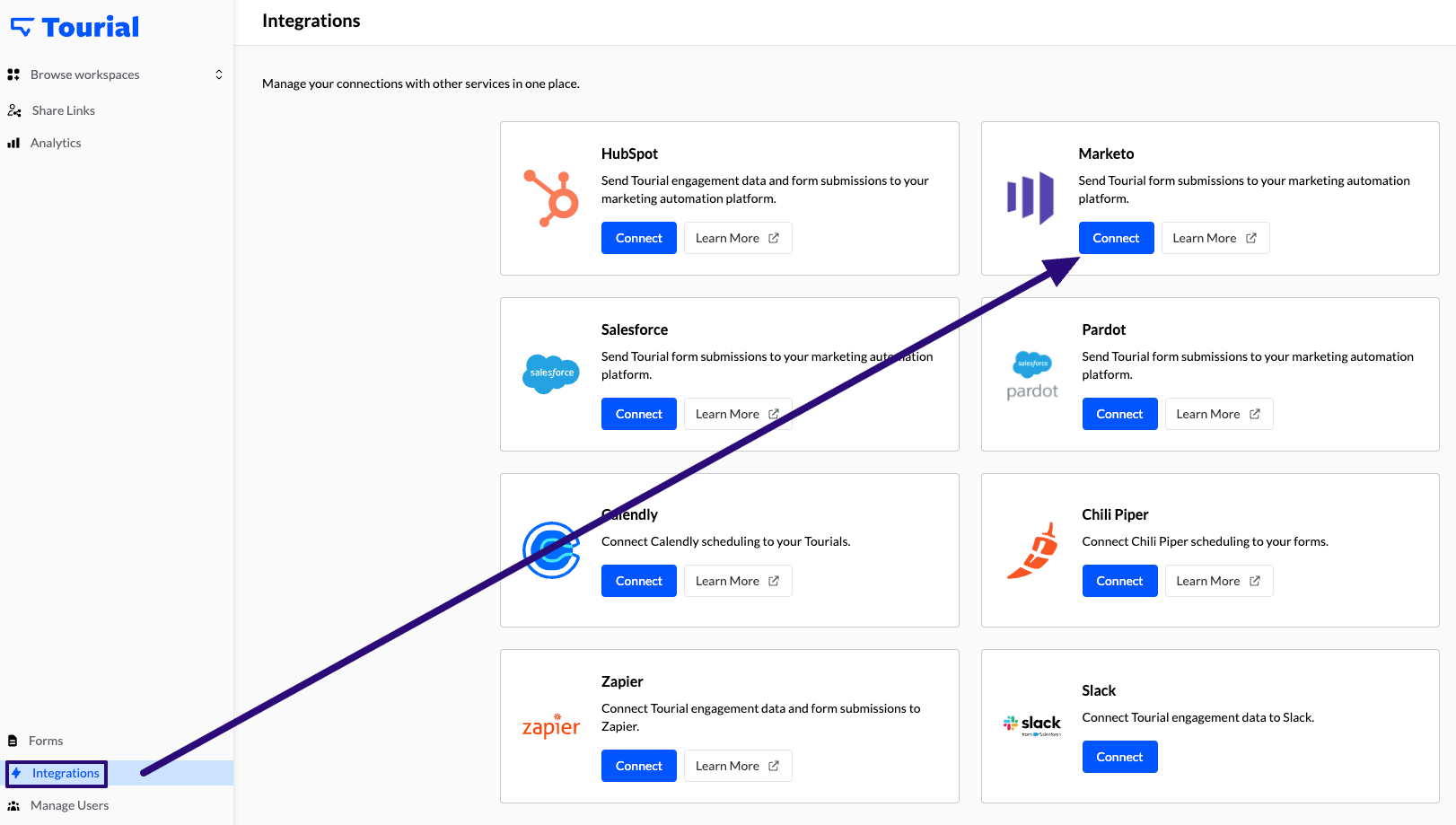
From your [integrations page](https://app.tourial.com/integrations), select Integrations in the left menu and then click Connect to begin the authentication process and connect your Marketo account to Tourial.
### Step 2: Complete the authentication process
1. Within Marketo, we recommend creating a new User Role (if one does not already exist) with Access API permissions.
*Note: We also recommend check-marking "Access Admin" so that the new Custom Activity for tourialView is auto-approved. However, this is not required, you'll just need to manually approve the new custom activity in Marketo. See Part 6 in this section.*
2. Then create a new user (ex: Tutorial Bot) assigned with the new User Role.
3. Navigate to LaunchPoint and create a New Service with Type: Custom.
4. Acquire the Client ID and Client Secret to complete the authentication process.
5. Close the Details dialog box, select Web Services, and then find and enter the Rest URL and Identity URL. Click Submit to finish authenticating.
6. If you did not add Access Admin to the User Role permissions above, follow this to approve the Tourial Custom Activity.\
1. In Admin, select Custom Activities in the left side menu or main screen.
2. On the right-hand side, select Tourial View. Then, with that selected, click the Custom Activity Actions dropdown and select Approve Activity.
### Step 3: Turn on Engagement Activity
Once you've successfully connected your Marketo account, you'll be redirected back to the Integrations page in the Tourial app.
Now, click Manage Integration >> Settings to get to the [Marketo settings page](https://app.tourial.com/integrations/marketo).
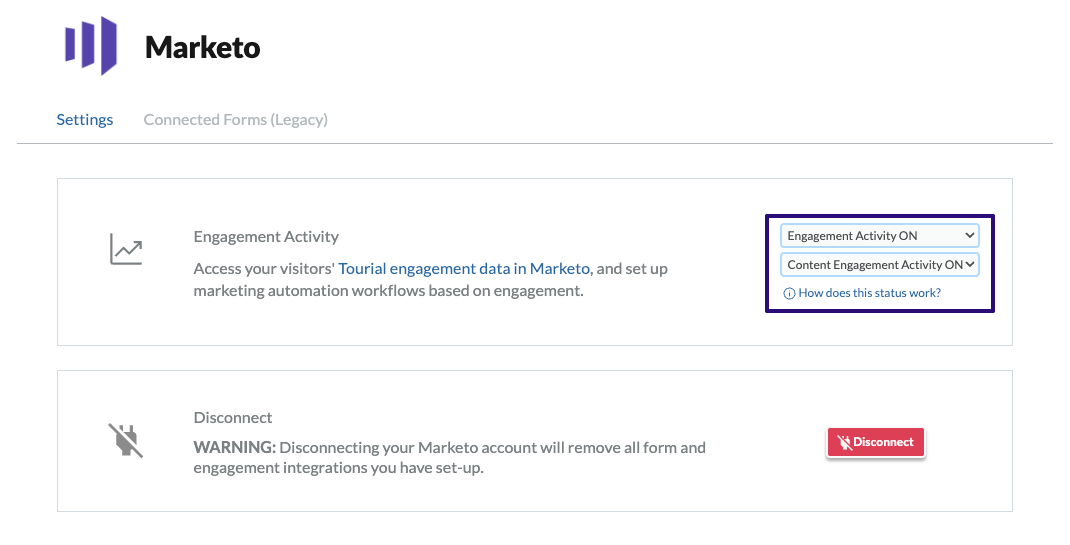
In the section labeled Engagement Activity, you'll see a dropdown menu to turn Engagement Activity on or off.
To ensure Tourial engagement data is captured and sent to Marketo, select Engagement Activity and Content Engagement Activity ON. This must be done before engagement activity can send to Marketo.
Once you're all set up, check out this [Marketo Engagement Tour ](https://websitetours.tourial.com/pages/marketo-integration)to see some of the ways you can use Tourial Engagement Data to create Smart Lists, Flows and more!
### Step 4: Choose your white-label subdomain and add it to Domain Setup in Tourial
🛑 You must be an admin in your account to complete this step.
To use the Marketo Engagement Integration, you'll need to serve your Tourials from your own domain rather than the Tourial domain.
First, create a new subdomain from which to serve the Tourial such as *tourial.yourcompany.com*. This subdomain can only be used for your Tourials and should not be used for anything else.
*Note: Visitors will not interact with the subdomain itself; creating it simply allows you to serve the tour from your domain rather than Tourial's domain.*
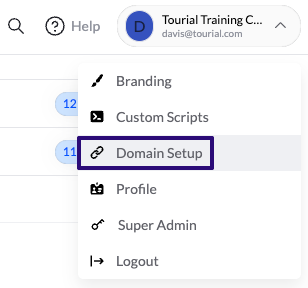
In the Tourial app, click on the user icon in the upper right-hand corner of your screen and head to Domain Setup.
Once there, you'll see a field where you can enter your subdomain; note that you do not need to include "https\://" or "[www](http://www/)."
Note: Your CNAME record will point to \[youraccount].tourialdns.com
***
## Setup with your Domain Provider
### Step 4: Configure the DNS
Once you've determined a subdomain, you'll need to access your domain provider and point the CNAME record for the subdomain to *\[youraccountname].tourialdns.com*.
Setting up a CNAME record works a little differently depending on your hosting provider (GoDaddy, HostGator, etc.). Below are guides for some common providers:
* [Add a CNAME record in GoDaddy](https://www.godaddy.com/help/edit-a-cname-record-19237)
* [Edit a CNAME record in HostGator](https://www.hostgator.com/help/article/how-to-change-dns-zones-mx-cname-and-a-records)
* [Updating CNAME in Domain.com](https://www.domain.com/help/article/dns-management-how-to-update-cname-aliases)
* [Set up a CNAME record in NameCheap](https://help.talentlms.com/hc/en-us/articles/360014574034-How-to-set-up-your-CNAME-with-NameCheap)
* [Add new DNS record in BlueHost](https://www.bluehost.com/help/article/dns-management-add-edit-or-delete-dns-entries#add)
* [Create a CNAME record in Google Domains](https://support.google.com/domains/answer/3290350?visit_id=638149334548346772-982645537\&rd=1)
If you need assistance setting up a CNAME record and pointing it to Tourial, please reach out to your Customer Success Manager or [submit a ticket here](https://share.hsforms.com/1tVKimHjXRNaxptrIdM5dcg4fcqx?__hstc=13798952.085d481b15c81001b0477390e26679ba.1702654969030.1702660925539.1702666293281.3&__hssc=13798952.3.1702666293281&__hsfp=2323863570).
### Step 5: Make sure the Tourial on your website is using the white-label domain
After you've configured the DNS, update your [embed code](/sharing/embed-codes/embedding-interactive-demos.md) to ensure the Tourial properly loads from the new subdomain.
***
What's next? Check out the [Tourial engagement data visible in Marketo](/integrations/map-crm-integrations/marketo/engagement-data-with-marketo.md)!\
\
See how to [connect your Marketo form to Tourial](/integrations/map-crm-integrations/marketo/lead-forms-with-marketo.md) for easy lead capture.
Learn how to [send Slack notifications from Marketo](https://tourial.gitbook.io/tourial-customer-product-documentation/integrations/marketo/engagement-data-with-marketo/slack-notifications-with-marketo). This way, your team can get real-time alerts when someone engages with your tours or submits a form!
---
# Agent Instructions
This documentation is published with GitBook. GitBook is the documentation platform designed so that both humans and AI agents can read, navigate, and reason over technical content effectively. Learn more at gitbook.com.
## Querying This Documentation
If you need additional information that is not directly available in this page, you can query the documentation dynamically by asking a question.
Perform an HTTP GET request on the current page URL with the `ask` query parameter, and the optional `goal` query parameter:
```
GET https://docs.navless.ai/integrations/map-crm-integrations/marketo.md?ask=&goal=
```
`ask` is the immediate question: it should be specific, self-contained, and written in natural language.
`goal` is optional and describes the broader end goal you are ultimately trying to accomplish on behalf of the user. GitBook uses it to tailor the answer towards what is most useful for that goal.
The response will contain a direct answer to the question and relevant excerpts and sources from the documentation.
Use this mechanism when the answer is not explicitly present in the current page, you need clarification or additional context, or you want to retrieve related documentation sections.