> For the complete documentation index, see [llms.txt](https://docs.navless.ai/llms.txt). Markdown versions of documentation pages are available by appending `.md` to page URLs; this page is available as [Markdown](https://docs.navless.ai/integrations/map-crm-integrations/hubspot/lead-forms-with-hubspot.md).
# Lead Forms with HubSpot
👉 [Take a Tour before Getting Started](https://websitetours.tourial.com/pages/hubspot-forms)👈
For this, you will need to have a HubSpot form created already to map your Navless form leads into your account. It can be a custom form dedicated to Navless (ie. Navless - HubSpot Form) or one you're already using (ie. Book a Demo)
If you're not sure how to create a HubSpot form, check out [this HubSpot Article](https://knowledge.hubspot.com/forms/create-forms).
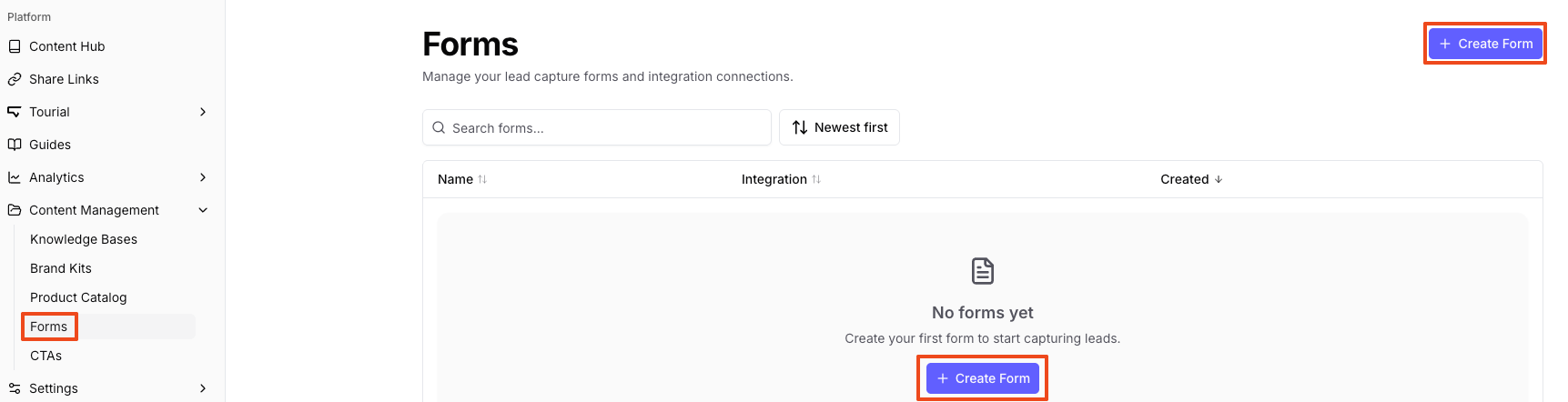
1\. In the Navless studio, select Content Management -> Forms, then Create New Form
2\. Select the HubSpot Intergration, then the form you want to pull in. NOTE: if you don't see the form you want on the list, check out the [FAQs](#h_008d5a9175) below.
4\. Configure your form fields, then click Next.
If you have hidden UTM fields in your form, you'll be able to map these as well. Select Hidden from the dropdown and then pick the corresponding UTM parameter
*Note: Make sure the number of fields in your Navless form matches the fields in your HubSpot form, otherwise you'll potentially send empty data or the integration will fail.*
7\. Configure the form's content, then click Next.
8\. Finalize the form's settings, then click Create Form.
### Success! 🎉 Confirm the connection by sending a test lead through the form to make sure it goes through to your HubSpot account!
***
## FAQs
1. We have our HubSpot form set to block free email providers. How do I set that in our Navless form as well?
1. *On the email field, be sure to select "Email (non-generic)" from the Field Type dropdown menu. This uses the same list of blocked providers as HubSpot. There won't be an error message, however, so we suggest naming that field something like "Work Email" or "Business Email" so it's clear.*
2. Do UTMs pass through the Navless form to HubSpot if Navless content is embedded on a page that has UTMs appended to the page URL?
1. Yes, UTMs are passed down from the parent page to the embedded Navless content *if* you are using our embed code and not something custom.
3. Will forms auto-populate data if a contact is known in our HubSpot database?
1. No, Navless forms do not currently reference HubSpot databases to auto-populate a form. For example, if you have a short gate to access your Tour and then a separate demo form at the end or in the nav, that second form will not auto-populate the person's details from the first form.
4. Why isn't my form showing up in the list?
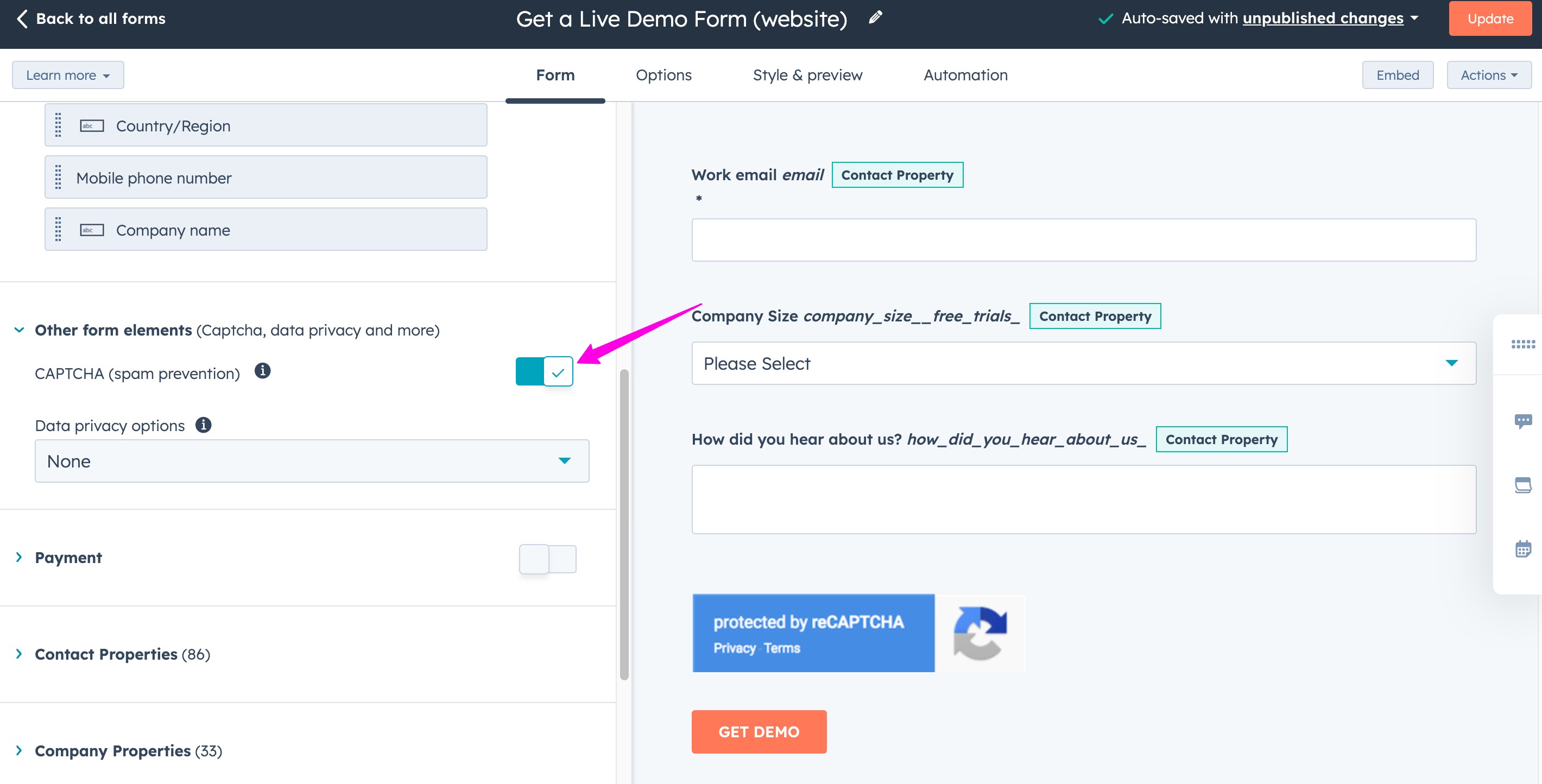
1. Hubspot doesn't allow us to submit to forms that have CAPTCHA turned on. You have to turn CAPTCHA OFF on the form, but you can enable CAPTCHA on the form within Navless. See screenshot below for where to turn off CAPTCHA in HubSpot
---
# Agent Instructions
This documentation is published with GitBook. GitBook is the documentation platform designed so that both humans and AI agents can read, navigate, and reason over technical content effectively. Learn more at gitbook.com.
## Querying This Documentation
If you need additional information that is not directly available in this page, you can query the documentation dynamically by asking a question.
Perform an HTTP GET request on the current page URL with the `ask` query parameter, and the optional `goal` query parameter:
```
GET https://docs.navless.ai/integrations/map-crm-integrations/hubspot/lead-forms-with-hubspot.md?ask=&goal=
```
`ask` is the immediate question: it should be specific, self-contained, and written in natural language.
`goal` is optional and describes the broader end goal you are ultimately trying to accomplish on behalf of the user. GitBook uses it to tailor the answer towards what is most useful for that goal.
The response will contain a direct answer to the question and relevant excerpts and sources from the documentation.
Use this mechanism when the answer is not explicitly present in the current page, you need clarification or additional context, or you want to retrieve related documentation sections.

.png?alt=media&token=f2a85e62-da24-415b-a769-754f40b733bf)
.png?alt=media&token=4e562f9f-9a16-4d66-a804-e21ec726ae7a)
.png?alt=media&token=f8b3aad4-4126-4eef-a794-1ed0c5a13c2d)