> For the complete documentation index, see [llms.txt](https://docs.navless.ai/llms.txt). Markdown versions of documentation pages are available by appending `.md` to page URLs; this page is available as [Markdown](https://docs.navless.ai/building-interactive-demos/interactive-tours/record/chrome-extension.md).
# Chrome Extension
The Tourial Chrome Extension helps you take high-quality screenshots and video recordings, or capture your product's HTML, then create a tour or add to an existing one.
* [Download the Tourial Chrome Extension](https://chromewebstore.google.com/detail/tourial-extension/bgnjlhcgomfmcohochohgmplhfeipjob?authuser=0\&hl=en)
* [Take a Tour of our Chrome Extension](https://websitetours.tourial.com/pages/chrome-extension/c2f45405)
## How to add Tourial's Chrome Extension to your browser:
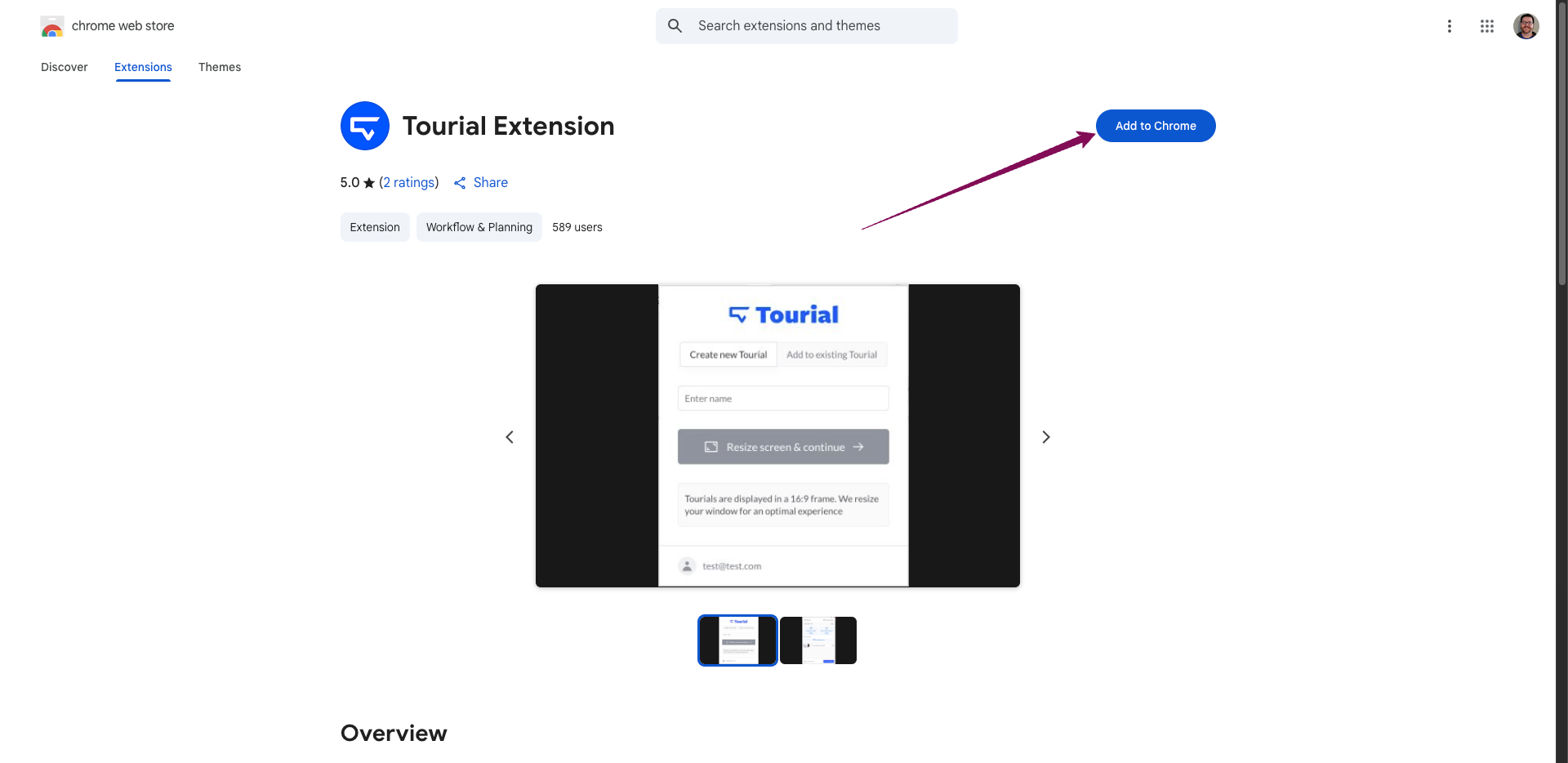
Click the link and then select Add to Chrome
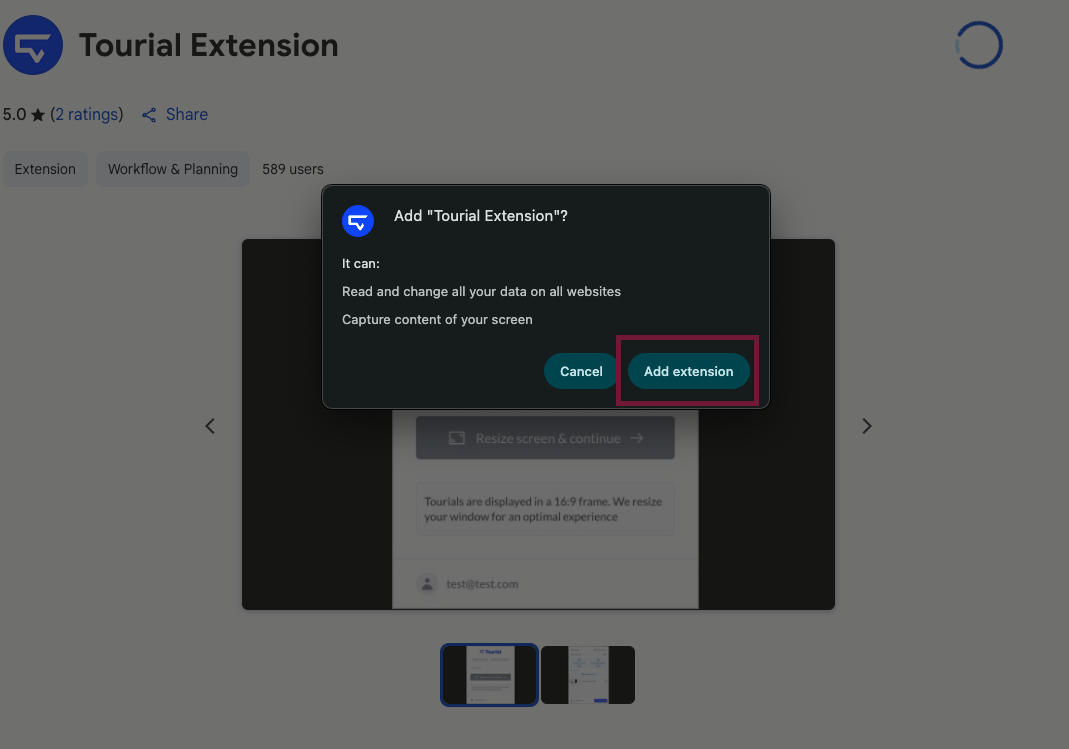
Confirm Add extension
You'll see a confirmation that the extension has been added to Chrome
For easy access, pin the Tourial Extension to your toolbar
## Using the Chrome Extension
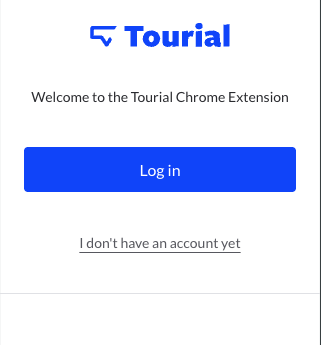
Click on the Tourial extension icon and log in using your Tourial credentials
Select whether you want to create a new Tour or add to an existing Tour. If you're adding to an existing Tour a dropdown will appear so you can pick which Tour to add your workflow, screen, or video capture to.
### Using Automatic Media Capture
1\) Automatic Media capture allows you to perform a series of steps or show off a flow/process while automatically capturing each click, scroll, or drag-and-drop motion.

2\) Click Media capture on the left. Your screen will automatically resize and a 3-second countdown will appear. After the countdown, perform the flow you want to capture.
Actions that trigger screen capture:
1. Clicks
2. Starting a workflow capture with a video - it will auto-add a start screen
3. Ending a workflow capture with a video - it will auto add an end screen
Actions that trigger a video recording:
1. Dragging/drag-and-drop
2. Scrolling vertically or horizontally
3. Inputting text\
Actions that terminate workflow capture:
1. Resizing the window
2. Changing browser tabs
3. Detaching browser tabs
4. Removing the pinned ‘capture’ tab *(far left tab)…*OR..the tab itself being recorded
5. Reaching max of 100 media items *(media items = screens and videos)*
6. Navigation to a new domain and declining permission popup *(new domain = going from* [*`tourial.com`*](http://tourial.co/) -> [*`clickup.com`*](http://clickup.com/)*)*
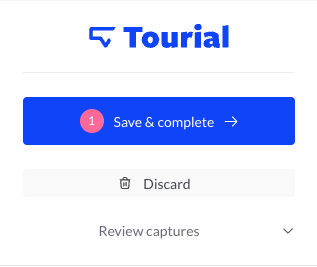
3\) Once you're done, click the extension icon and select Save & complete
4\) Your captured workflow pages will appear in your Tour where you can rename them
5\_ Tooltips are automatically added to your screens so all you have to do is update the content
### Using Manual Media Capture
1. After you've logged into Tourial, click *Manually take screenshots and videos.*
2. Your window should automatically resize. You can also select Resize window. Your browser window will resize to the correct dimensions for your Tour. Leave your window at this size.

\
***Note:*** If you change your browser size and need to resize it again, simply click on Resize window in the upper right of the extension pop-up.
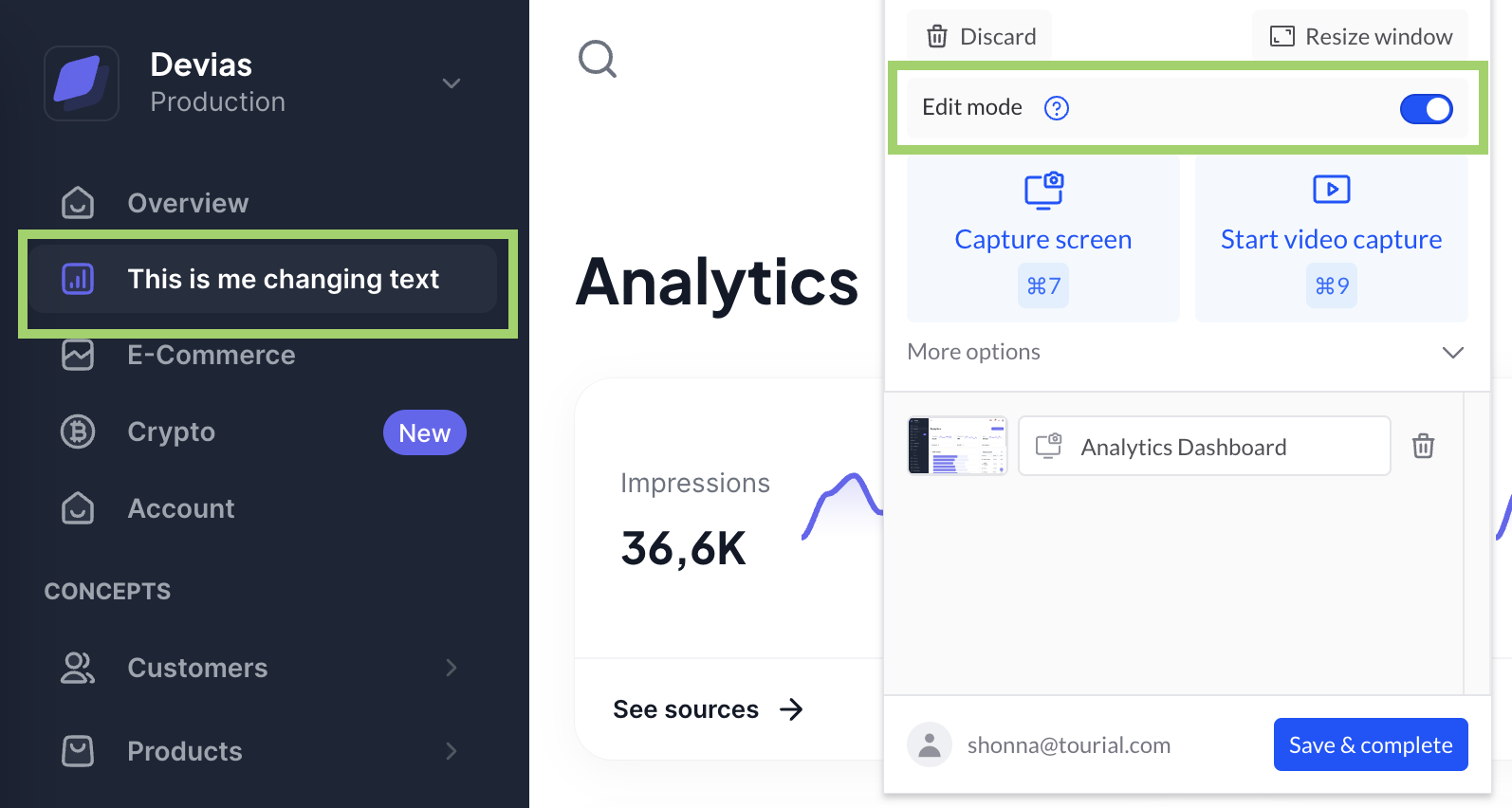
3. There are two options for manual capture - Capture screen and Start video capture.
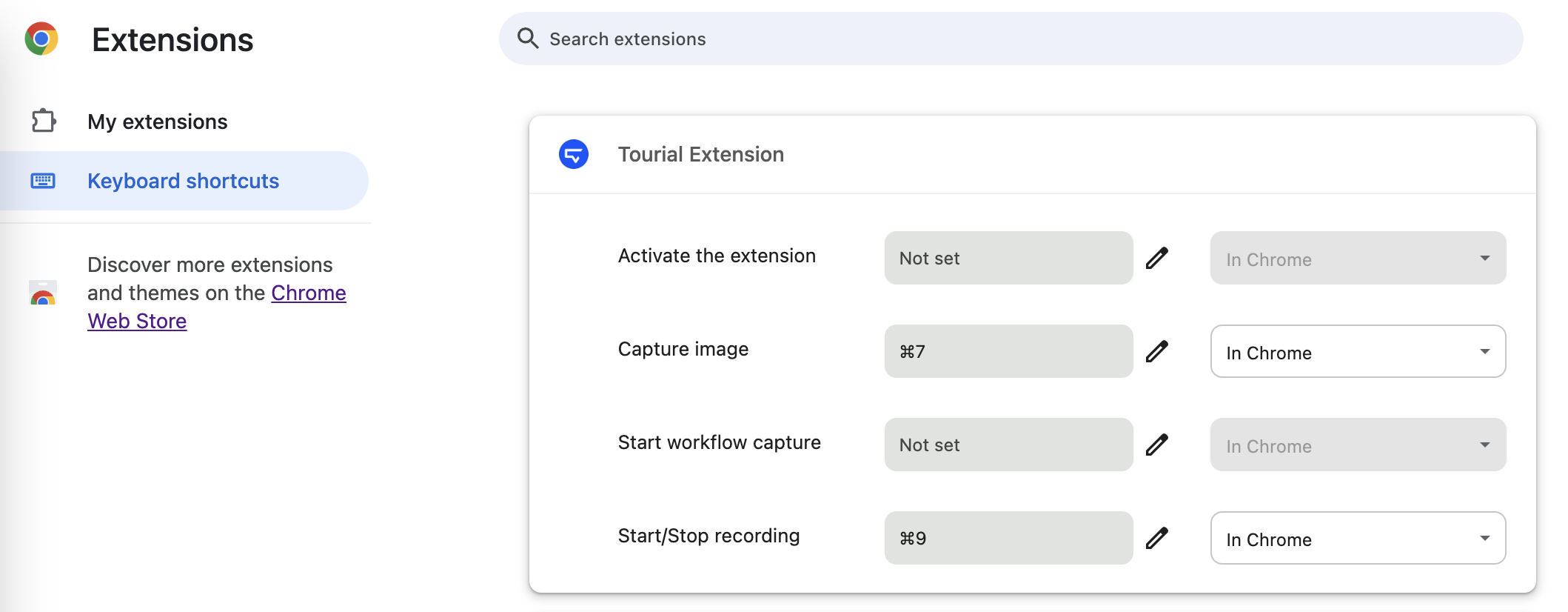
1. It also comes with default hotkeys (shift+cmd+7 for screen capture and shift+cmd+8 for video recording start/stop)
2. If you do not see these hotkeys, you can manually set and/or customize them (sometimes another extension tool may be using the default hotkey already).
3. Go to [chrome://extensions/shortcuts](https://intercom.help/tourial/en/articles/5915462-the-tourial-chrome-extension) to set keyboard shortcuts.
4. To take a single screenshot, select Capture screen or press your hotkeys. You'll see a 3-second countdown on your screen and then once the image is captured you'll notice a number badge on the extension icon.\
5. Name your screen. Continue capturing screens as needed and naming each.

6. You can also edit text on a screen before taking the screen capture. Toggle on Edit mode, then edit whatever text you need. When you're done, capture the screen!
7. To record a video, select Start video capture or use your shortcut. A 3-second countdown will appear.\
8. Once you're done with your video, click on the extension icon and select End video capture or use the default/customized hotkey.\

9. After you have your screens and video, click Save and complete. Your screens will be added to your Storyboard in your newly created or selected Tour.\
\
***Note:*** You may also screen capture an entire page using the Scrolling capture feature under More options. Avoid scrolling or moving your mouse pointer while capturing the full page in order to get the best result.
## Troubleshooting the Chrome Extension
1. Ensure your Chrome Extension is updated to the latest version
2. Ensure your Tourial Extension is updated to the latest version
1. Don't know what Tourial Extension Version you are on?
1. Go to your Chrome Extensions Manager (chrome://extensions/) and Click on Developer Mode
2. How to verify what the latest Tourial Extension Version is?
1. [Navigate here](https://chromewebstore.google.com/detail/tourial-extension/bgnjlhcgomfmcohochohgmplhfeipjob?authuser=0\&hl=en\&pli=1#:~:text=Version,3.7.3) to find out (scroll down to the 'Details' section
### Still having trouble? Try these additional steps.
1. Log out of app.tourial.com and close the extension
1. This will reset the extension to its starting state. Then, reopen the extension and log back into Tourial to continue using it.
2. Close any additional tabs. Chrome works best with fewer tabs open. For the best experience, only have the tabs you need for your current task open in your Chrome window. This can help prevent the extension from freezing or slowing down.
---
# Agent Instructions
This documentation is published with GitBook. GitBook is the documentation platform designed so that both humans and AI agents can read, navigate, and reason over technical content effectively. Learn more at gitbook.com.
## Querying This Documentation
If you need additional information that is not directly available in this page, you can query the documentation dynamically by asking a question.
Perform an HTTP GET request on the current page URL with the `ask` query parameter, and the optional `goal` query parameter:
```
GET https://docs.navless.ai/building-interactive-demos/interactive-tours/record/chrome-extension.md?ask=&goal=
```
`ask` is the immediate question: it should be specific, self-contained, and written in natural language.
`goal` is optional and describes the broader end goal you are ultimately trying to accomplish on behalf of the user. GitBook uses it to tailor the answer towards what is most useful for that goal.
The response will contain a direct answer to the question and relevant excerpts and sources from the documentation.
Use this mechanism when the answer is not explicitly present in the current page, you need clarification or additional context, or you want to retrieve related documentation sections.