# Chrome Extension (Capture)

### <mark style="color:purple;">Using HTML Capture</mark> <a href="#h_99a781f29d" id="h_99a781f29d"></a>

1. HTML capture allows you to copy the frontend code of your product and preserves hover states and scrollability so that users feel like they are inside your application (even though the buttons don’t work).\
   ![](https://67180079-files.gitbook.io/~/files/v0/b/gitbook-x-prod.appspot.com/o/spaces%2FKaMCOI4HEb21AIKZlkHe%2Fuploads%2FUmATvW6nDAN67v20N9ww%2Fimage.png?alt=media\&token=666cd790-e871-4933-911c-2eeef251e296)<br>
2. Click HTML capture on the right. A 3-second countdown will appear, and after the countdown, a capture will take place. Repeat this for every screen you want to capture.<br>
3. Once you're done, click the extension icon to see the pages captured, then select Save & complete.\
   ![](https://67180079-files.gitbook.io/~/files/v0/b/gitbook-x-prod.appspot.com/o/spaces%2FKaMCOI4HEb21AIKZlkHe%2Fuploads%2FZ7sDvlPFlJBRUc8AdkNG%2Fimage.png?alt=media\&token=be2967ce-b5ec-4d8a-b1d5-a69aac9ee773)<br>
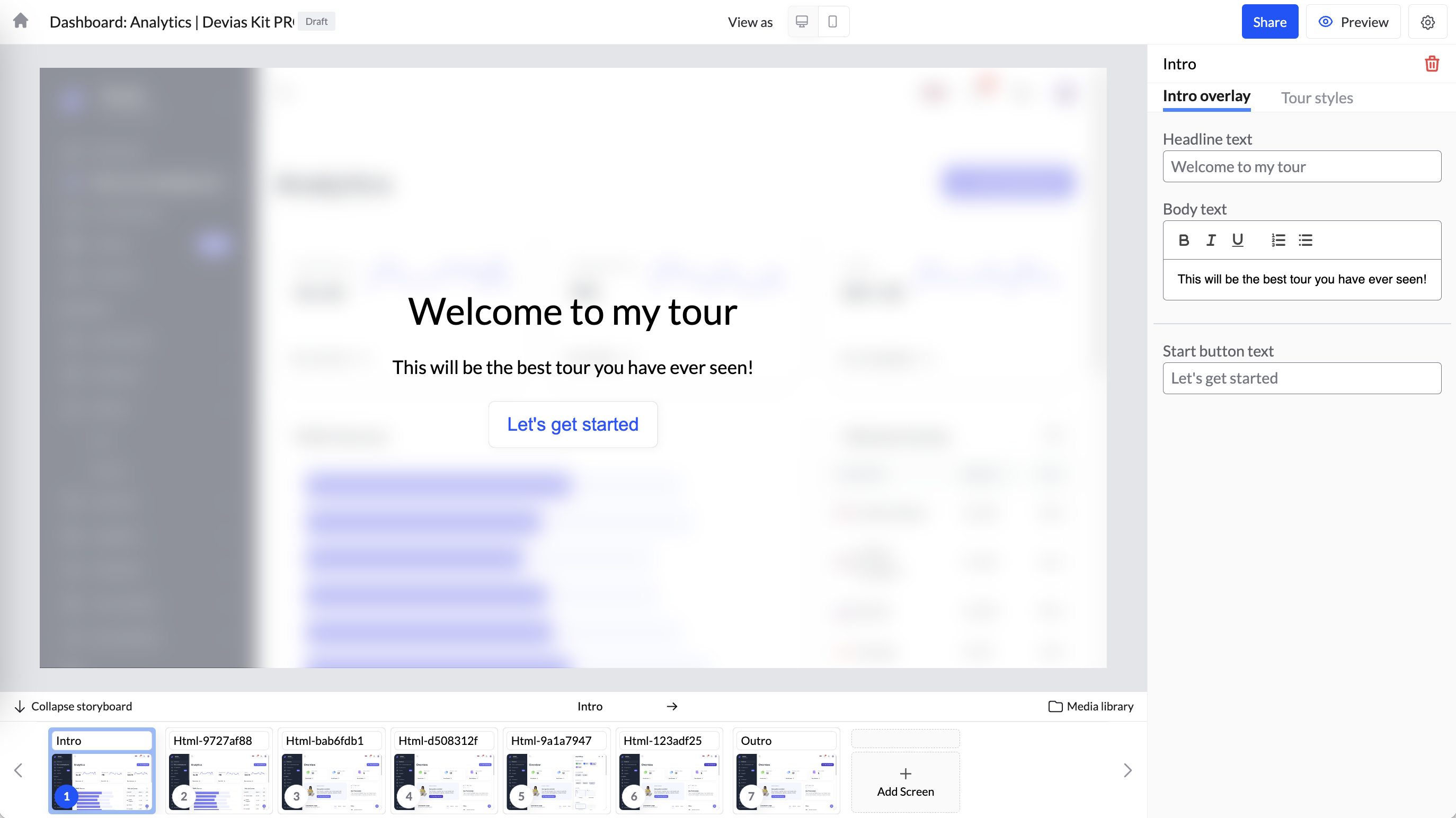
4. When you go to your Tourial project, you'll see your pages at the bottom and an intro screen that's automatically created. <br>

   <figure><img src="https://67180079-files.gitbook.io/~/files/v0/b/gitbook-x-prod.appspot.com/o/spaces%2FKaMCOI4HEb21AIKZlkHe%2Fuploads%2F5pU8K0ESX71zWLJBQgDn%2Fimage.png?alt=media&#x26;token=90329b0b-c54d-4dc8-a1d8-1c254059193a" alt=""><figcaption></figcaption></figure>

## Troubleshooting the Chrome Extension <a href="#h_51d0b0255d" id="h_51d0b0255d"></a>