> For the complete documentation index, see [llms.txt](https://docs.navless.ai/llms.txt). Markdown versions of documentation pages are available by appending `.md` to page URLs; this page is available as [Markdown](https://docs.navless.ai/building-interactive-demos/interactive-tours/edit/interactive-tools/advanced-features.md). Agents can also search and read this documentation through its [MCP server](https://docs.navless.ai/~gitbook/mcp).
# Advanced Features
Zoom effects, Hovers & Interactions
All of your Interactive Tools can be customized to create a seamless experience! Using some of these features can help you take your Tours to the next level.
## Zoom Effects
One of the greatest things about Tourial is the zoom effect. To add one, just add a new step using the + icon in the Storyboard, and then edit your zoom state from the sidebar editor. That's it!
## Customizing your Tools
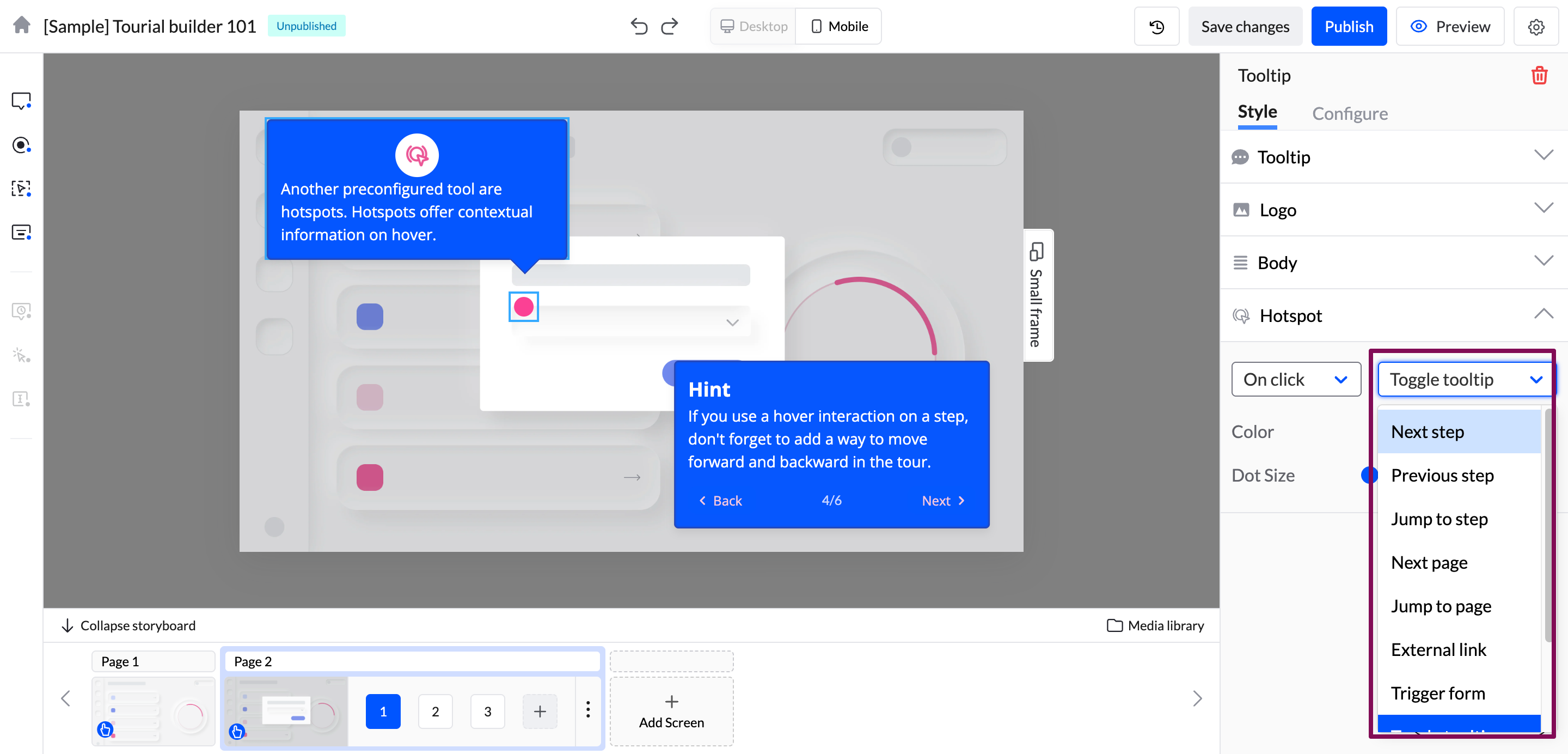
We already have default interactions in place for you! In the event that you want to modify the interactions, you can do so by doing the following:
First, click the element you want to add an interaction to (i.e. button, hotspot).
Next, navigate to the Configure tab in the right sidebar editor and scroll down to where you can see the Hotspot, Click Zone options.
Then, add a On Click or On Hover from the dropdown options
Finally, choose your interaction destinations. You have several options such as Jump to page, Toggle Tooltip, and External link (and several others)
---
# Agent Instructions
This documentation is published with GitBook. GitBook is the documentation platform designed so that both humans and AI agents can read, navigate, and reason over technical content effectively. Learn more at gitbook.com.
## Querying This Documentation
If you need additional information that is not directly available in this page, you can query the documentation by asking a question.
Perform an HTTP GET request on the following URL with the `ask` and `goal` query parameters:
```
GET https://docs.navless.ai/building-interactive-demos/interactive-tours/edit/interactive-tools/advanced-features.md?ask=&goal=
```
`ask` is the immediate question: it should be specific, self-contained, and written in natural language.
`goal` is what the user is ultimately trying to achieve, the reason they need the answer. Sharing it helps GitBook give you a better, more relevant answer. A goal is most helpful when it describes the outcome the user wants rather than restating the question. For example, with `ask=how do I create an API token`, a goal like `automate deployments from our CI pipeline` lets GitBook tailor the answer to that use case.
The response will contain a direct answer to the question and relevant excerpts and sources from the documentation.
Use this mechanism when the answer is not explicitly present in the current page, you need clarification or additional context, or you want to retrieve related documentation sections.