> For the complete documentation index, see [llms.txt](https://docs.navless.ai/llms.txt). Markdown versions of documentation pages are available by appending `.md` to page URLs; this page is available as [Markdown](https://docs.navless.ai/building-interactive-demos/interactive-tours/branding.md).
# Branding
In a few clicks, you can add branded color palettes and styling for your Tour Components. Once you've added it, you can apply those changes across all or multiple Tours — easy!
[Take a Tour of how to Set your Account Branding!](https://websitetours.tourial.com/pages/branding)
\
\
With Branding you can:
* Customize and save Color Palettes, Font Styles, and create Templates for your Tour Components, Page Styles, and Forms
* Update every Tour (or selected Tours) all at once (i.e. your company rebrands)
* Brand updates happen in small and large capacities... even after your Tours are done, if you need to make one-off brand updates, *you can do this in bulk!*
* Saves time -- focus on building your Tours, not styling them individually
* Maintain brand control — only account Admins can edit Branding
* Ensure styling consistency across all your Tours
### Your Brand
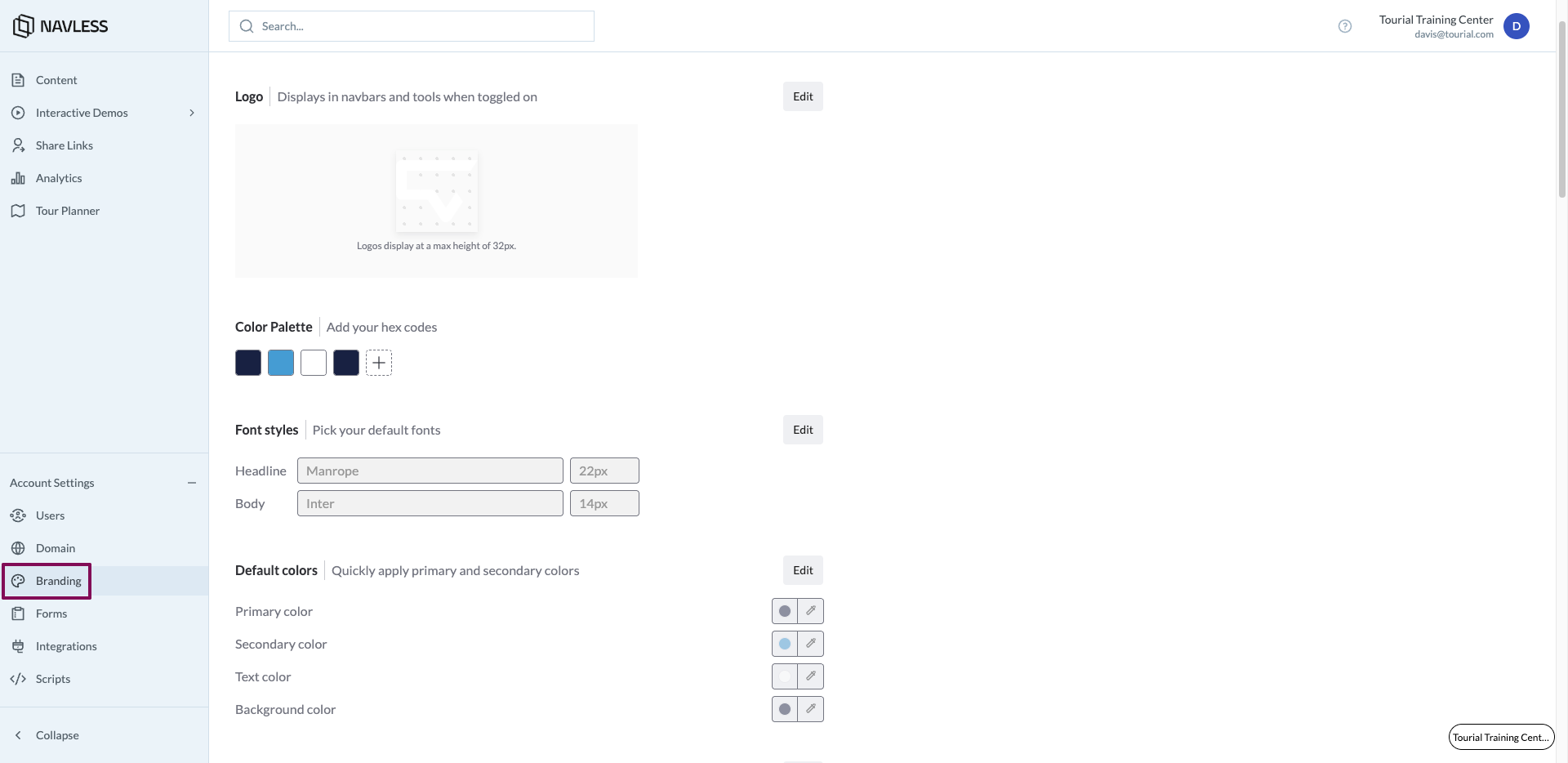
* Set your color palette by adding multiple HEX codes (there is no limit!)
* Add your default font type, size, and color for Headlines and Body content
* Add defaults for your Primary, Secondary, Text and Background colors
* Primary color - affects borders and button backgrounds (+ button text if background color is transparent) across Tooltips, forms, and step counters in Tooltips
* Secondary color - affects hotspots and clickzones in Tooltips as
### Templates
Under templates, you can set defaults for Tour Components, Page Styles and Forms.
#### Tour Components
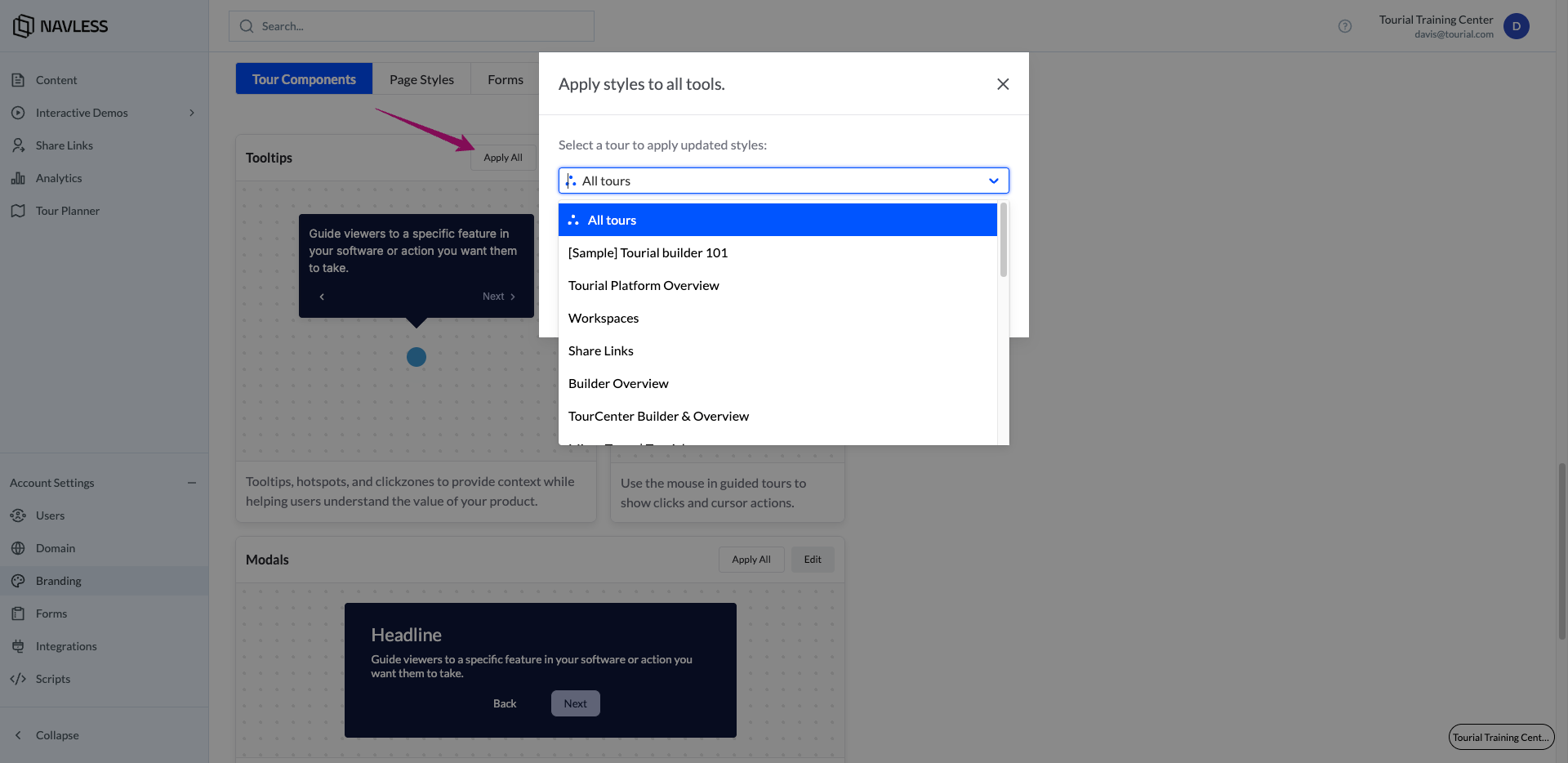
* See a preview of your Tooltip template
* Click Edit to set or change your Tooltip styling (size, buttons, font size, hotspots, clickzones, etc.)
* Select Apply All to apply changes to all your Tours, or select which ones you'd like to apply the styling to.
Note: You can also use the dropdown menu to toggle between styling
* The same applies to Modals and Timed Tools
#### Forms
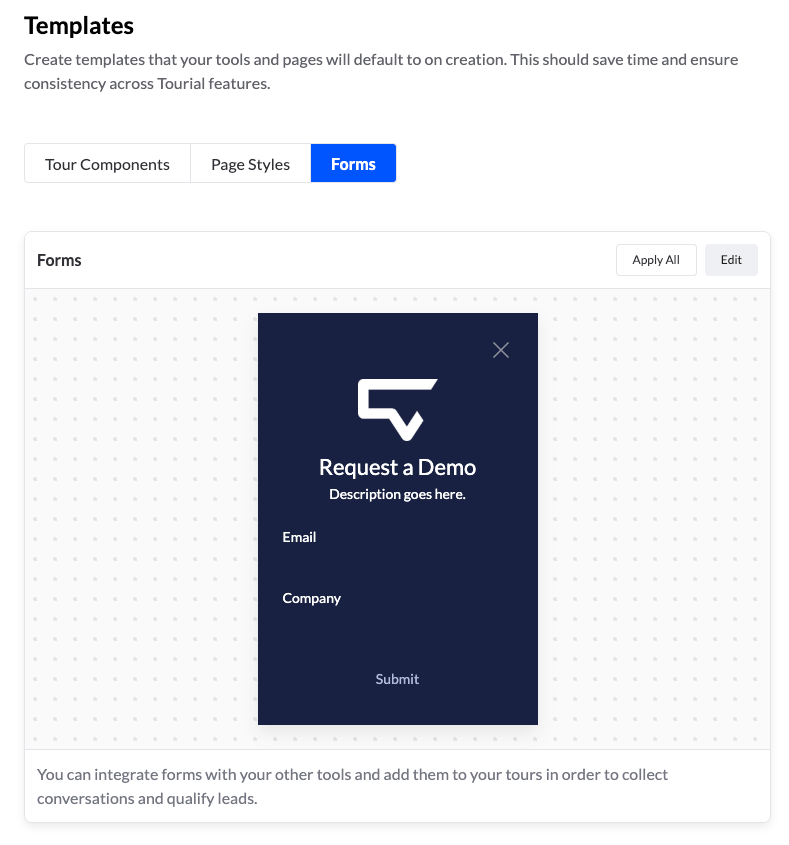
1. Set your Forms template.
2. Select Apply All to apply changes to all your Tours with forms, or select which ones you'd like to apply the styling to.
### FAQs
* Can I save multiple brand templates?
* No. You can save one template per section (Tour Components, Page Styles, Forms)
* Can I update all my tools at once?
* Yes. Use the "Apply All" button to update all tools across your Tours. Use the Default colors section to instantly update colors across all tools all at once.
* Can I only update certain tools at once?
* Yes. Simply edit the tool (tooltips or modals, for example) you want to change and apply those changes to any or all Tours.
* Can I revert?
* Not at this time. Once you save changes, you can not revert to a previous state.
* Can I update all templates in bulk with primary/secondary colors?
* Yes. If you update primary or secondary colors under Default colors, those will apply across all of your templates.
* Can I update all my tours at once?
* Yes. use the "Apply All" button to update all of your Tours.
* Can I update only specific tours?
* Yes. Under the "Apply All" button, select the Tours you wish to update.
* Can I still update tools when inside the tour?
* Yes. New Tours will be created with the set Branding, but additional changes can be made within the individual Tour.
* Can anyone make Branding changes?
* No. Only account Admins can set or change settings under Branding.
* Can anyone make tool changes in a Tour?
* Account Editors and Admins can make changes but Viewers cannot.
---
# Agent Instructions
This documentation is published with GitBook. GitBook is the documentation platform designed so that both humans and AI agents can read, navigate, and reason over technical content effectively. Learn more at gitbook.com.
## Querying This Documentation
If you need additional information that is not directly available in this page, you can query the documentation by asking a question.
Perform an HTTP GET request on the following URL with the `ask` and `goal` query parameters:
```
GET https://docs.navless.ai/building-interactive-demos/interactive-tours/branding.md?ask=&goal=
```
`ask` is the immediate question: it should be specific, self-contained, and written in natural language.
`goal` is what the user is ultimately trying to achieve, the reason they need the answer. Sharing it helps GitBook give you a better, more relevant answer. A goal is most helpful when it describes the outcome the user wants rather than restating the question. For example, with `ask=how do I create an API token`, a goal like `automate deployments from our CI pipeline` lets GitBook tailor the answer to that use case.
The response will contain a direct answer to the question and relevant excerpts and sources from the documentation.
Use this mechanism when the answer is not explicitly present in the current page, you need clarification or additional context, or you want to retrieve related documentation sections.